
Whether your dedicated server suddenly goes offline or feels slow, a structured approach restores the running time faster. In this guide, you'll learn how to solve network connectivity problems on dedicated servers using proven steps, command examples for Linux and Windows, and practical advice from the real hosting experience.
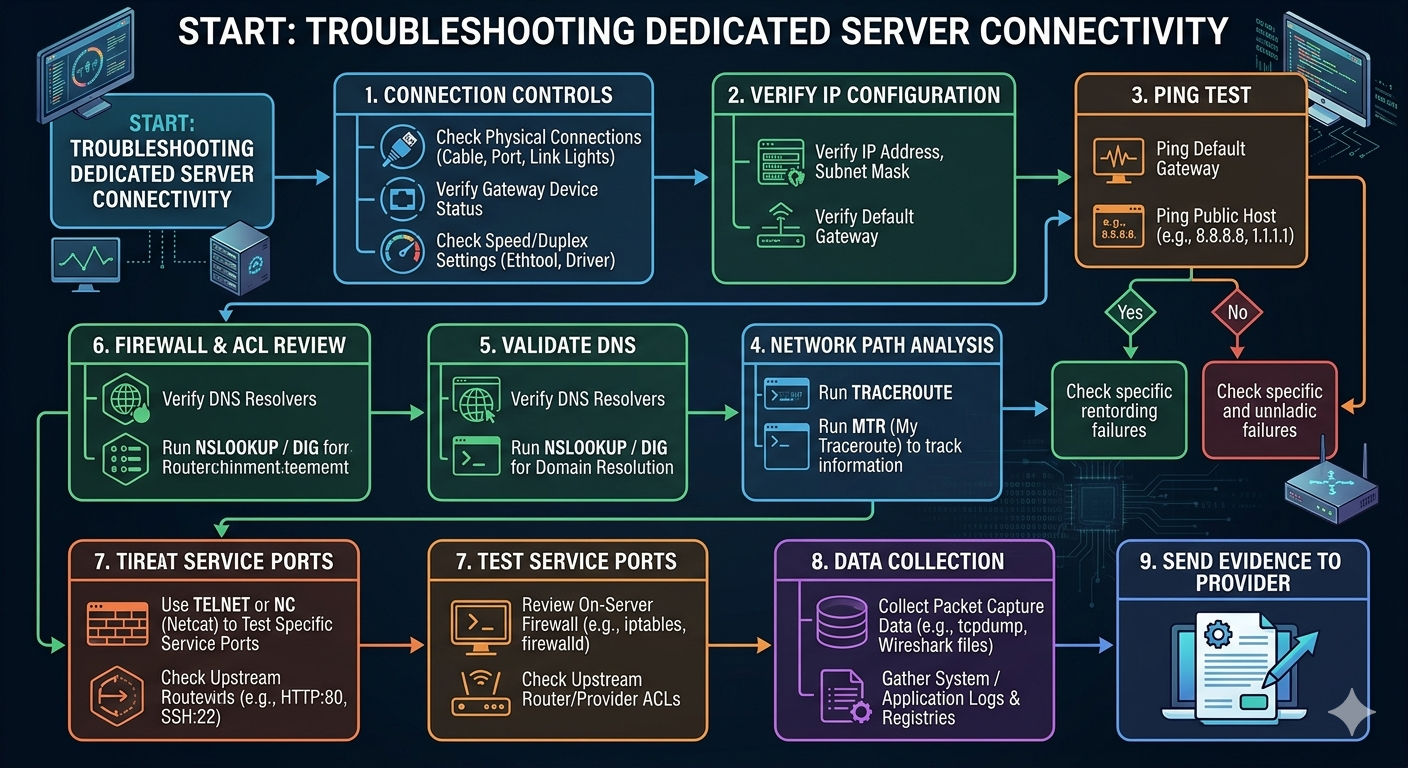
Quick Look-to-At-checklist (Use this First)
- Confirm that the connection is active: port LEDs, switch port condition, NIC status, speed/duplex.
- Verify IP address: correct IP, mask, gateway, VLAN labeling, static route.
- Peng tests: loopback, self IP, gateway, popular public IP (e.g., 1.1.1.1), domain name.
- Street tests: traceroute/MTR to identify jumps, delay and loss of packages.
- DNS check: solve with the dig/nslookup; test with and without DNS.
- Firewall/ACL-të: Firewall/ACLs: review iptables/nftables/UFW or Windows Firewall; provider's ACL/DDOS filters.
- Service-level tests: curl/telnet/c/Test-NetConnection at the target gate from the inside and from the outside.
- Package capture and registrations: tcpdump, event logs, system registry, IDS/WAF registers.
- Collect evidence for escalation: time stamps, MTR, package captures, configuration fragments.
How networking with dedicated server fails (and why)
Most outages are divided into several categories: problems with negotiating links, incorrect IP/gateway, VLAN or trunk discrepancies, upstream or DDoS filtering, DNS resolution failures, host firewall rules or performance problems like MTU discrepancy and package loss. Understanding where the stack breaks helps you fix it quickly.
Step 1: Verify the Physical and Connection Layer
Start from Layer 1/2. If the connection is turned off or not functioning, nothing in the higher layers will work. Check cables, SFP modules, switch-ward ports errors, speed/duplex and VLAN labeling.
Linux link controls
# Show interfaces and link state
ip -br link

# Detailed NIC and driver info
ethtool eth0
ethtool -S eth0   # driver counters (drops/errors)

# VLAN interfaces (if applicable)
ip -d link show eth0.100

# Bring interface up/down
ip link set dev eth0 up
Windows link controls
# PowerShell: adapter status, speed, VLAN
Get-NetAdapter | Format-Table Name,Status,LinkSpeed,MacAddress

# Advanced properties (offloads/VLAN)
Get-NetAdapterAdvancedProperty -Name "Ethernet" | Format-Table DisplayName,DisplayValue
If you see frequent errors, drop or half-duplex, renegotiate speed/duplex (prefer Auto unless your provider orders otherwise), restore cables or use another port. In data centers, the wrong VLAN labels usually terminate the link - confirm the expected VLAN ID with your provider.
Step 2: Validate IP address, subnetwork and gateway
A faulty incoming mask or gateway prevents traffic outside the network. In the guided configurations, the incoming gates are often outside your usable beam - copy them carefully.
Addressing Linux
# Show IPs and routes
ip -br addr
ip route

# Add IP / route (example)
ip addr add 203.0.113.10/29 dev eth0
ip route add default via 203.0.113.9 dev eth0

# ARP neighbors
ip neigh
Windows Address
# IP and gateway
ipconfig /all
Get-NetIPConfiguration

# Add/modify gateway (PowerShell example)
New-NetRoute -DestinationPrefix 0.0.0.0/0 -InterfaceAlias "Ethernet" -NextHop 203.0.113.9

# ARP cache
arp -a
Tip: If you can do ping at your gate, but not online, doubt about the upstream or provider's ACL path. If you can't do ping at your own gate, but you can do your own, review your mask/port or VLAN.
Step 3: Test Achievement and Traceroute/MTR)
Always test both IP and host-name to separate the pathway from DNS problems. Use MTR for a fluent appearance of latency and loss over time.
# Linux
ping -c 4 127.0.0.1
ping -c 4 <server-IP>
ping -c 4 <gateway-IP>
ping -c 4 1.1.1.1
traceroute 1.1.1.1
mtr -rw 1.1.1.1

# Windows
ping 127.0.0.1
ping <server-IP> && ping <gateway-IP> && ping 1.1.1.1
tracert 1.1.1.1
# WinMTR (GUI) is a great alternative
Interpretation: Loss or high delay starting in step 1-2 indicates local problems or at the providers' limits. The loss further suggests overload on the upstream or instability of the road. The ongoing "requirement has expired" at every turn often means that the ICMP is limited in speed; verify it with TCP tests.
Step 4: DNS and Name Solution
If raw IPs work but domains fail, it's DNSControl the selectors and try a solver known as 1.1.1.1 or 8.8.8. Make sure that no DNS firewall policy blocks questions.
# Linux
cat /etc/resolv.conf
resolvectl status  # on systemd-resolved
dig A example.com @1.1.1.1
dig +trace example.com

# Windows
nslookup example.com 1.1.1.1
Get-DnsClientServerAddress
For the authoritative servers you use, confirm your NS data, paste the data, and that your firewall allows UDP/TCP 53 where it is requested.
Step 5: Firewalls, ACLs and Mitigation of DDoS attacks
Host firewalls and upper-flow ACLs often block expected traffic. Audit the allowed lists, pre-election policies, and the latest rule changes. During DDoS events, providers can make traffic by non-arding or speeding restriction.
Linux firewall controls
# nftables
nft list ruleset

# iptables (legacy)
iptables -S
iptables -L -n -v

# UFW
ufw status verbose
Windows firewall controls
Get-NetFirewallProfile
Get-NetFirewallRule -Enabled True | where {$_.Direction -eq "Inbound"} | Format-Table DisplayName,Direction,Action,Enabled
Port and service level tests
# From the server
ss -tulpn  # Linux: listening services
netstat -ano | findstr LISTEN  # Windows

# End-to-end port test
nc -vz yourserver.com 443  # Linux/macOS
Test-NetConnection yourserver.com -Port 443  # Windows

# HTTP(S) test
curl -I https://yourserver.com
At YouStable, our network includes smoothing always enabled and proactive filtering and proactive filtering. If you suspect volumetric or application-later attacks, open a MTR output ticket, time stamps, source/destination IPs and any WAF/IDS registry so that our NOC can tune the mitigation without cutting off legitimate traffic.
Step 6: Latency, Package Loss and MTU Inconsistency
Temporary breakdowns and slow transfers often indicate problems with the quality of the trail or problems with the MTU. Identify where the loss begins, then test the MTU and load download settings.
Diagnose and adjust MTU
# Linux: find working MTU to 1.1.1.1
ping -M do -s 1472 1.1.1.1  # If it fragments, lower -s until it works
ip link set dev eth0 mtu 1450

# Windows (PowerShell): test and set
ping -f -l 1472 1.1.1.1
netsh interface ipv4 set subinterface "Ethernet" mtu=1450 store=persistent
Check downloads and queues (performance tuning)
# Linux: disable problematic offloads (test)
ethtool -K eth0 tso off gso off gro off lro off

# Windows: adapter advanced properties (GUI) or PowerShell
Get-NetAdapterAdvancedProperty -Name "Ethernet" | ? {$_.DisplayName -match "Offload"}
For high-performance workloads, consider the connection/unification of NICs, intermittent coupling and CPU affinity tuning. Always test changes during maintenance windows to avoid unwanted impact.
Step 7: Problems with the upstream provider or with the route
If local tests go through, but the trails show losses across your border, capture the evidence and engage your provider. Include MTRs from you to the target and from an external probe back to you (use RIPE Atlas or the looking glass tool), time stamps and prefixes/applates/ports.
YouStable Customers can request itinerary optimization or assistance in traffic engineering. Our team examines BGP paths, cleaning policies and peer selection to improve delay and consistency where possible.
Advanced Problem Solution: Packet Capture and Registrations
When simple tests are not enough, inspect the packages and logs. Package captures indicate whether traffic reaches the NIC and how it is formed or dropped.
# Linux: capture specific port
tcpdump -ni eth0 port 443 -w /tmp/https.cap

# Capture without truncation for analysis
tcpdump -ni eth0 -s 0 -vvv -w /tmp/full.cap

# Windows (with Wireshark or pktmon)
pktmon start --etw -p 0
pktmon stop
pktmon format PktMon.etl -o trace.txt
Korelo captures with registers: web server access/errive logs, IDS/WAF, system logs (journalctl, /var/log/messages) and Windows Event Viewer (System, Security). Search for re-establishment of links, SYN floods, TLS handshake failures or resource restrictions.
Linux vs. Windows: Fast Command Reference
# Linux quick hits
ip -br addr && ip route
ethtool eth0 && ethtool -S eth0
ping -c 4 1.1.1.1 && traceroute 1.1.1.1
mtr -rw 1.1.1.1
dig A example.com @1.1.1.1
ss -tulpn
nft list ruleset | iptables -S
tcpdump -ni eth0 host <IP> -w trace.cap

# Windows quick hits
ipconfig /all
Get-NetIPConfiguration
Get-NetAdapter | ft Name,Status,LinkSpeed
ping 1.1.1.1 && tracert 1.1.1.1
nslookup example.com 1.1.1.1
netstat -ano | findstr LISTEN
Get-NetFirewallProfile; Get-NetFirewallRule -Enabled True
Test-NetConnection yourserver.com -Port 443
Common scenarios and quick solutions
- There is no outgoing traffic, incoming works: Check the default path, ACL-output, exit filtering, NAT rules and zero routes of the provider after DDoS.
- Can ping by IP be done, but not by domain: adjust the selector; verify if UDP/TCP 53 is allowed; check the systemd-resolved configuration.
- SSH/RDP was blocked after updates: the host firewall was changed; allow your IP on the list; confirm the changes of the gates; check the fail2ban/Windows Defender rules.
- Interrupted holidays: investigate MTU, downloads, duplex discrepancies, NIC errors or overload overflow through MTR.
- Just a broken VLAN/snitching: Verify the switch's trunk configuration, naming the labeled interface (eth.100) and PVID in access ports.
Best Practices of Prevention and Strengthening
- Document address: IPs, masks, gateways, VLAN IDs and any static route.
- Basic monitoring: ping/Jitter, MTR from external probes, flow analysis.
- Firewall controlled by version: manage the rules of nftables/iptables or Windows Firewall as code.
- Change windows and restore them back: test MTU/reduce the load overtime; keep a spare plan.
- DDoS readiness: speed limits, SYN cookies, WAF, CDN for L7, black hole controls on the part of the provider.
- Excess: Double NIC, LACP connection/grouping, different up-to-stick connections where possible.
- Regularly update network card (NIC) drivers and operating system for stability and security.
When to contact your service provider (What to send)
- Overview of the problem with time stamps and precise UTC scope (IP, gateways, protocols).
- MTRs from server to target and external MTRs back to your server.
- Tracking, ping results and packet capture (pcap) for the stems that fail.
- Switch/NIC statistics that show errors or blocks; relevant firewall logs.
- Configuration fragments (purified) for IP/gateway/VLAN/firewall.
Frequent Questions: Network Connection Problems Solving
Why doesn't my dedicated server respond to the ping?
Common reasons include disabled ICMP in the host firewall, the provider's ICMP speed limit, default default default, goal-correction, or DDoS's null pathway. Test a TCP port (e.g., 22/3389/443) from the outside and review firewalls/ACLs. If the TCP works, but the ping doesn't work, the ICMP is likely to have been filtered - not a complete outage.
How can I fix the loss of packages on my dedicated server?
Identify where the loss begins using MTR. If it's in step 1, check the NIC, duplex/MTU errors or host firewall. If it's in the provider's core, open a ticket with MTR/pcaps. Under attack, activate DDoS defense and speed limits. Also review downloads (TSO/GSO/GRO), drivers updates and hardware condition.
How can I tell if a firewall is blocking a specific port?
By client, run Test-NetConnection (Windows) or nc/curl (Linux) at the gate. On the server, confirm that the service is listening (s/netstat) and the firewall rules allow the port. If local checks go through, but remote controls fail, investigate upper-flow ACLs, load balancers, or DDoS policies.
Traceroute vs. MTR: which one should I use?
Traceroute gives a short view of the road; MTR combines traceroute with constant ping-eye steps, detecting interrupted losses and fluctuations. Use both: traceroute for a quick map, MTR for trend analysis, and evidence to share with your provider.
Which registers help diagnose network outages?
On Linux, check the journalctl, /var/log/syslog or messages, service logs (Nginx/Apache), and firewall logs. In Windows, review Event Viewer (System, Security), Windows Defender, and app logs. Pait the registers with tcdump/pcap captures for conclusive evidence of declines, resets or handshake failures.